
Sphero Indi Is a Tiny Robotic Car That Helps Children Learn Programming

Android 11 DP4 Gets a New "Select" Option in Recents Screen


Android 11 DP4 Gets a New "Select" Option in Recents Screen 

By Techtonic group

Google has been making tweaks to Android 11's multi-tasking screen for quite some time now. Back with developer preview 3 last month, the company made the apps appear larger inside the recents screen, along with a couple of shortcuts at the bottom. Now, with Android 11 developer preview 4, Google has made another change to the multi-tasking screen.

When you enter the multi-tasking (or recents) screen in Android 11 now, you will see a third option in the row of buttons at the bottom. This new option, called 'Select' is fairly self explanatory. You can tap on the select button and Android 11 will identify selectable text from the app screen shown in the recents view. You can then select text from it.
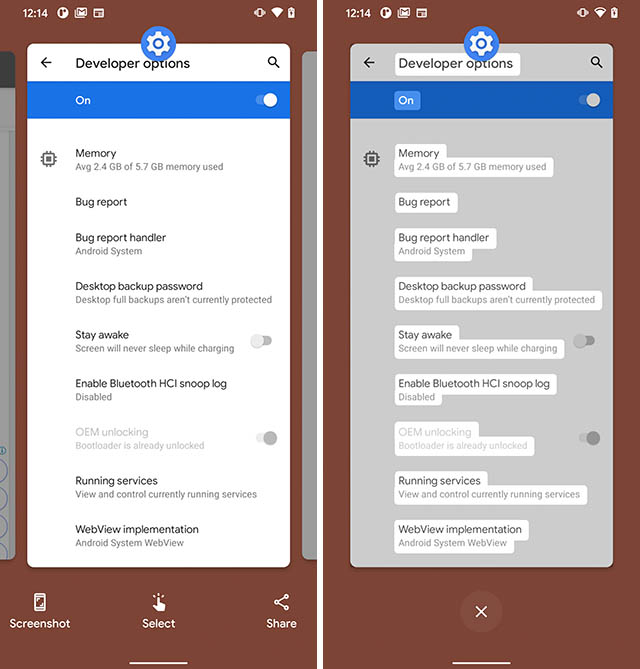
The feature looks very similar to Google Lens' text identification feature, and it works just as well at identifying selectable text on your screen.

It's noteworthy that the capability to select text from within app screens in the recents view is not exactly new in Android. It has been available in the OS for a couple of years now; users can simply long press on app views to select text while they are in the recents screen. In fact, that method still works. From what I can tell, this is an attempt from Google to make more people aware of this particular capability of the Android operating system, and to increase its usage.

Comments

Popular posts from this blog

Here is the First-Ever Video That Was Posted on YouTube

Here is the First-Ever Video That Was Posted on YouTube By Techtonic group Fifteen years ago, on Valentines' Day of 2005, the domain name "www.youtube.com" went live. The following months saw developments of the website and the first-ever video on the platform was posted on April 23, 2005. The YouTuber who shared the video was none other than one of the founding members, Jawed Karim. The YouTube that we know now is a massive video streaming platform with innumerable audience members. However,  it is fascinating to see from where the platform started its journey . So, in this article, I want to talk about the very first video that was uploaded on the platform, and surprisingly, it still exists. So, the 240p, grainy video, titled "Me at the zoo", shows a 25-year-old Jawed Karim, one of the founders of YouTube, standing in front of a group of elephants at the San Diego Zoo.  The 18-second video went live on April 23, 2005, and it is still there with ove...

10 Best File Manager Apps for Android You Should Use

  Almost all Android smartphones   ship with a built-in File Manager app   today. However, not all OEM file managers offer the level of features and functionality that come with third-party apps on the Google Play Store. So today, we will tell you about the 10 best third-party file manager apps (often also referred to as file browser or file explorer) for Android. These apps will help you better organize your files and folders on an Android smartphone. Best File Manager Apps for Android (Updated May 2021) The best file manager apps on Android let you browse your files, find your downloads, manage your storage space, and more. There are plenty of file managers on Android, and most of them are free. While some of them offer you premium features for a small charge, others are ad-supported. So without any further delay, let’s check out the best file manager apps on Android. Table Of Contents  Note:  The apps mentioned in this article are meant for Android smartphone...

How to Remotely Access Your Raspberry Pi from Windows, Mac, Linux, & Chrome OS

  How to Remotely Access Your Raspberry Pi from Windows, Mac, Linux, & Chrome OS We have already written a detailed guide on  how to use a Windows laptop as a monitor for Raspberry Pi , and it requires a wired ethernet connection. However, if you want to remotely access Raspberry Pi from your Windows 10, Mac, or Linux PC, you can do so with Wi-Fi and VNC server. In this article, we also explain the steps to connect to your Raspberry Pi remotely from a Chromebook in detail. Even if you are a beginner, you can follow the instructions and get it running in a few minutes. So without any delay, let’s go through the tutorial. Remotely Access Raspberry Pi From Windows, Mac, Linux & Chromebook (2021) Before establishing a remote connection, you will need to connect Raspberry Pi to your computer through the  wired ethernet medium for a quick one-time setup . This is essential to connect the Raspberry Pi to your Wi-Fi home network. As a result, an IP address will be assigne...