
Google Chrome has started rolling out new privacy tools and a redesigned 'Settings' menu on desktop. According to the developers, the incoming changes to Chrome’s privacy and security settings will not only make them more accessible, intuitive and useful, but will also help users better control their safety on the web. The new features have just started rolling out and will be coming to Chrome on desktop platforms in upcoming weeks.
More Intuitive Privacy Settings
First off, it will now be easier to manage cookies. According to Google, users will now be able to choose if and how websites can use cookies. They'll also get options to block third-party cookies, irrespective of whether in regular or Incognito mode. There will also be an option to block all cookies on some or all websites.
Secondly, Google is grouping the Site Settings page into two sections to make it easier for users to find the most sensitive website permissions. These include access to your location, camera or microphone and notifications. Chrome is also adding a new section that highlights the most recent permissions activity.
The Chrome settings page will now also have a 'You and Google' section with 'Sync' controls. Users can use these controls to decide what data is shared with Google to be stored in their Google Account.
Last, but definitely not the least, Google has moved the 'Clear Browsing Data' option to the top of the Privacy & Security section. That's because many people regularly delete their browsing history, says the company.
Safety Check
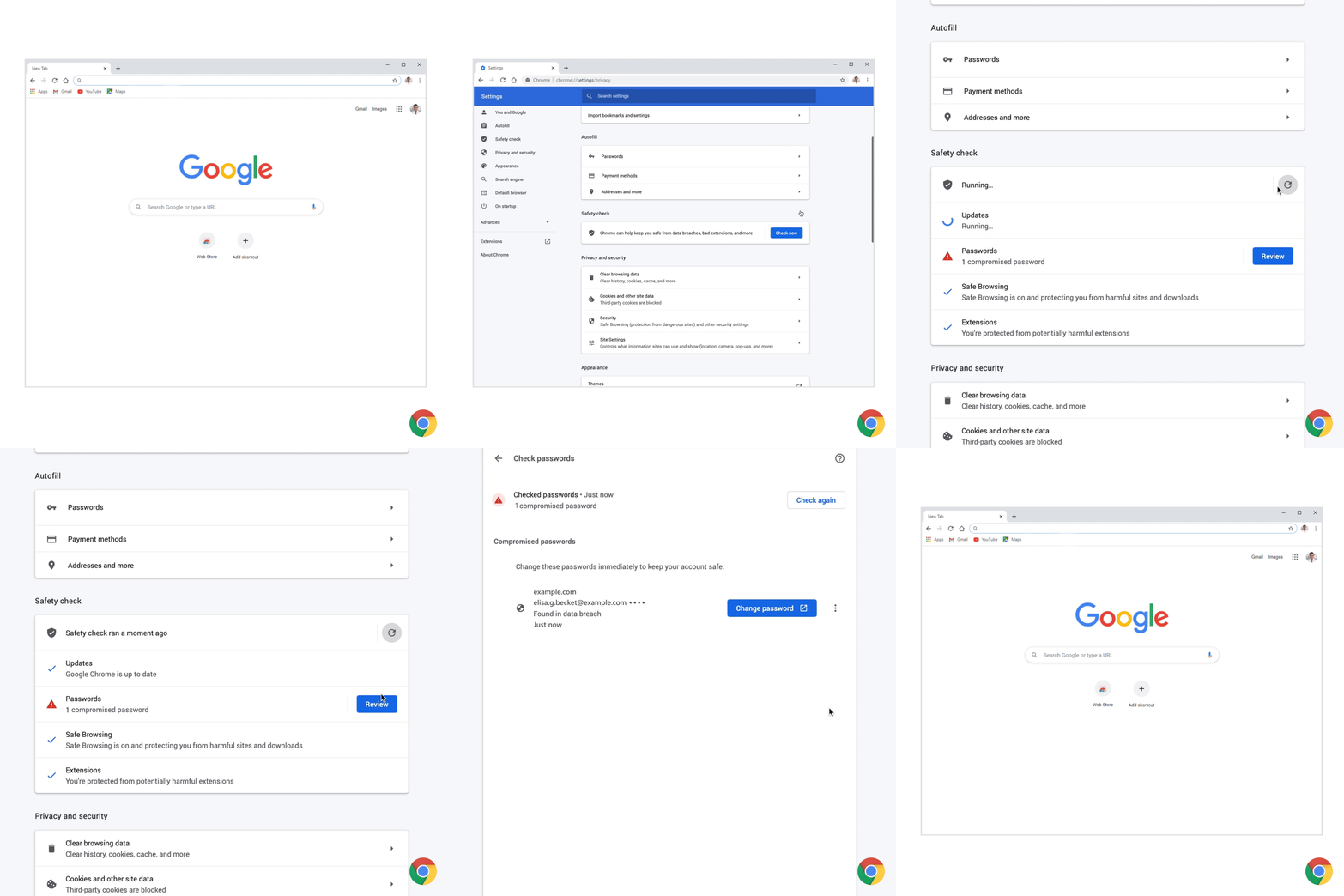
Google Chrome is also bringing a new 'Safety Check' feature. It will inform users about security-related problems with stored passwords. It will also offer an additional way to check if you're running the latest version of Chrome on your system. It will also alert you about possible malicious extensions and tell you how to remove them.
Incognito Mode to Block Third-Party Cookies by Default
Google Chrome will start blocking third-party cookies by default within each Incognito session. Users, however, will be able to enable third-party cookies for specific sites by clicking the 'eye' icon in the address bar. This feature will gradually roll out, starting on desktop operating systems and on Android.
Extensions Grouped Under Single Icon
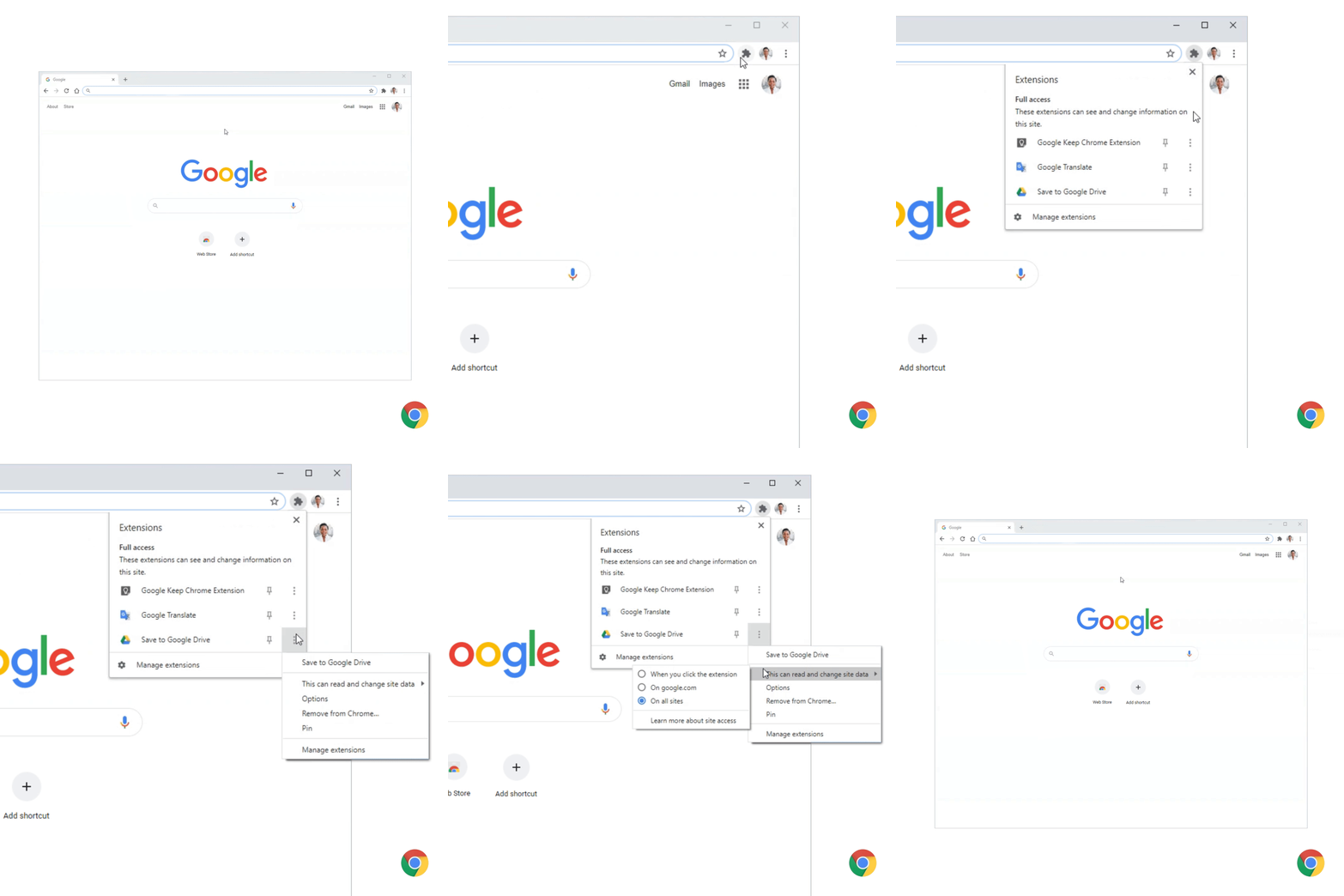
Google Chrome will now group all Chrome extensions under a new puzzle icon on the toolbar. "It’s a neat way to tidy up your toolbar, and gives you more control over what data extensions can access on sites you visit. With this addition, you’ll still be able to pin your favorite extensions to the toolbar", said the company.
Enhanced Safe Browsing and Secure DNS
Google Chrome is introducing two new major security features with the latest update. First off is Enhanced Safe Browsing that offers better protection from phishing, malware and other web-based threats. It's an optional feature that will send your web-activity to Google to check whether the pages you're visiting are safe or not.
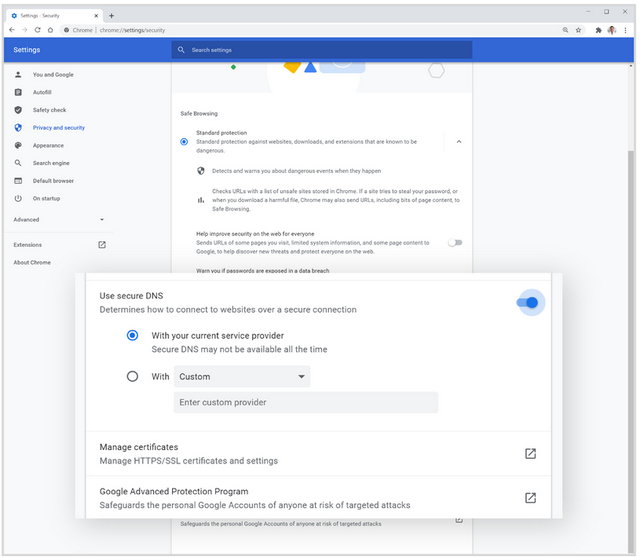
The second security feature is Secure DNS. According to Google, it will improve your security on the web by using DNS-over-HTTPS for the domain name lookup. It will prevent attackers from observing what sites you visit or sending you to phishing websites, says the company. By default, Chrome will automatically upgrade you to DNS-over-HTTPS if your current DNS service supports it. You can also configure a different DNS provider or disable the feature altogether.
These changes and features will roll out to Chrome in the coming weeks, and it's likely that some of them will require enabling Chrome flags as well. Most of these features will first make an appearance on Chrome desktop.
Comments
Post a Comment