
Sphero Indi Is a Tiny Robotic Car That Helps Children Learn Programming

Realme X50 Pro Player Edition TENAA Listing Reveals Specifications


Realme X50 Pro Player Edition TENAA Listing Reveals Specifications

By Techtonic group

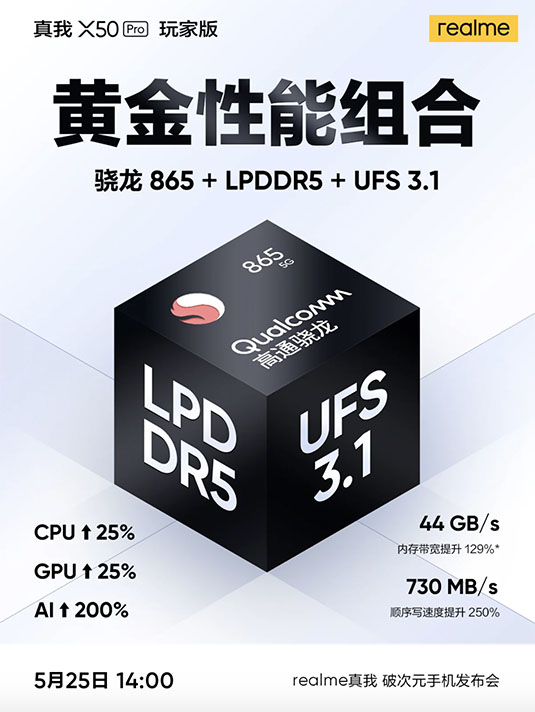
Realme is expected to launch the Realme X50 Pro Player Edition in China on May 25 alongside a bunch of other products including (possibly) the Realme Buds Air Neo. The gaming focused edition of the Realme X50 Pro 5G is going to feature almost the same internals and sporting the model number RMX2072.

Now, a new listing on certification website TENAA has given away the Realme X50 Pro Player Edition's specifications. As expected, the phone has similar specs as the X50 Pro 5G. According to the TENAA listing, the Realme X50 Pro Player Edition comes with the Snapdragon 865 processor paired with up to 12GB of RAM. That's the same as the Realme X50 Pro 5G. However, the listing reveals that the Player Edition will also be available in a 512GB storage variant. In comparison, the Realme X50 Pro 5G only went up to 256GB.

The listing also reveals watered down cameras on the Player Edition. While the Realme X50 Pro came with a 64MP primary rear camera, the Player Edition has a 48MP primary sensor. Also, the front camera on the Player Edition is a dual 16MP + 2MP, while the regular X50 Pro featured a 32MP + 8MP selfie camera.

Similar to the Realme X50 Pro 5G, the Player Edition also features LPDDR5 RAM, which is great. However, the new phone will come with the faster UFS 3.1 storage as compared to UFS 3.0 in the Realme X50 Pro 5G. That means we can expect faster read/write speeds and game load times.
Apart from all that, the listing reveals a 2,055mAh battery cell, so the phone will likely have a dual-cell battery of around the same 4,200mAh as the X50 Pro 5G.

Comments

Popular posts from this blog

Here is the First-Ever Video That Was Posted on YouTube

Here is the First-Ever Video That Was Posted on YouTube By Techtonic group Fifteen years ago, on Valentines' Day of 2005, the domain name "www.youtube.com" went live. The following months saw developments of the website and the first-ever video on the platform was posted on April 23, 2005. The YouTuber who shared the video was none other than one of the founding members, Jawed Karim. The YouTube that we know now is a massive video streaming platform with innumerable audience members. However,  it is fascinating to see from where the platform started its journey . So, in this article, I want to talk about the very first video that was uploaded on the platform, and surprisingly, it still exists. So, the 240p, grainy video, titled "Me at the zoo", shows a 25-year-old Jawed Karim, one of the founders of YouTube, standing in front of a group of elephants at the San Diego Zoo.  The 18-second video went live on April 23, 2005, and it is still there with ove...

10 Best File Manager Apps for Android You Should Use

  Almost all Android smartphones   ship with a built-in File Manager app   today. However, not all OEM file managers offer the level of features and functionality that come with third-party apps on the Google Play Store. So today, we will tell you about the 10 best third-party file manager apps (often also referred to as file browser or file explorer) for Android. These apps will help you better organize your files and folders on an Android smartphone. Best File Manager Apps for Android (Updated May 2021) The best file manager apps on Android let you browse your files, find your downloads, manage your storage space, and more. There are plenty of file managers on Android, and most of them are free. While some of them offer you premium features for a small charge, others are ad-supported. So without any further delay, let’s check out the best file manager apps on Android. Table Of Contents  Note:  The apps mentioned in this article are meant for Android smartphone...

How to Remotely Access Your Raspberry Pi from Windows, Mac, Linux, & Chrome OS

  How to Remotely Access Your Raspberry Pi from Windows, Mac, Linux, & Chrome OS We have already written a detailed guide on  how to use a Windows laptop as a monitor for Raspberry Pi , and it requires a wired ethernet connection. However, if you want to remotely access Raspberry Pi from your Windows 10, Mac, or Linux PC, you can do so with Wi-Fi and VNC server. In this article, we also explain the steps to connect to your Raspberry Pi remotely from a Chromebook in detail. Even if you are a beginner, you can follow the instructions and get it running in a few minutes. So without any delay, let’s go through the tutorial. Remotely Access Raspberry Pi From Windows, Mac, Linux & Chromebook (2021) Before establishing a remote connection, you will need to connect Raspberry Pi to your computer through the  wired ethernet medium for a quick one-time setup . This is essential to connect the Raspberry Pi to your Wi-Fi home network. As a result, an IP address will be assigne...