
Sphero Indi Is a Tiny Robotic Car That Helps Children Learn Programming

Xiaomi Mi True Wireless Earphones 2 Launched In India at Rs. 4,499


Xiaomi Mi True Wireless Earphones 2 Launched In India at Rs. 4,499

By Techtonic group

Audio is one product category that has recently received a lot of attention from Xiaomi. The company already has a myriad of wired, neckband-style wireless, and Bluetooth speakers in its portfolio. The one thing that has been long-requested and missing from the audio lineup is truly wireless earbuds. Well, the wait finally comes to an end today. The Mi True Wireless Earphones 2, which made their global debut back in March this year, have been launched in India.

Mi True Wireless Earphones 2: Specs and Features

Xiaomi's TWS earbuds are certainly inspired by Apple Airpods. The semi in-ear design, along with the protruding stem with touch controls, sounds pretty much the same. The resemblance doesn't end there as Xiaomi has built its own quick pairing animation into MIUI and it looks similar to Apple's.

When you open the Mi True Wireless Earphones 2 charging case, a pop-up notification to pair the earbuds will pop-up on your Xiaomi device. It will then display the battery info for both the case and earbuds, which is pretty nifty.
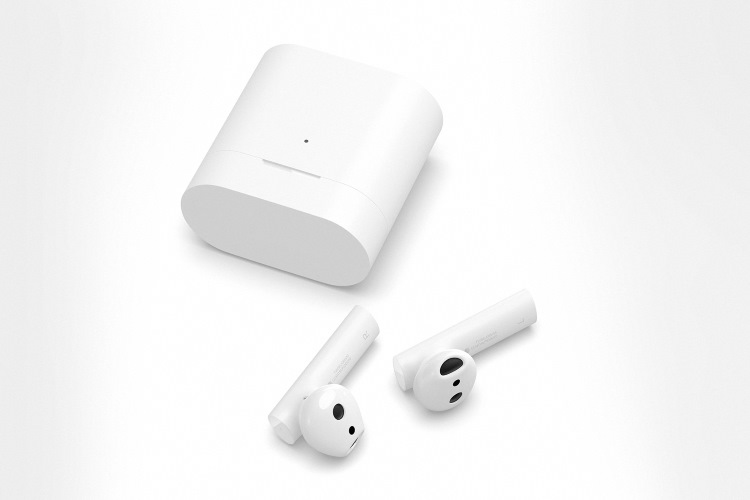
Moving past the Airpods comparison, Mi True Wireless Earphones 2 include 14.2mm drivers for a more powerful, bass-driven sound output. Each earbud weighs only 4.5 grams, which is pretty lightweight, while the case comes in at around 50 grams. This means the Mi True Wireless Earphones 2 are pocketable and easy to carry around.

These earbuds support in-ear wear detection. They're equipped with an infrared sensor to detect when you place the earbuds in your ear. The music will come to a pause when you pull them out and play automatically when you place them back in your ears. The earbuds connect over Bluetooth 5.0 and support LDHC Hi-Res audio codec.

Another key highlight of Mi True Wireless Earphones 2 is ENC (environmental noise cancellation). Each earbud is equipped with two mics to cancel out background noise and deliver a crisp audio experience. The earbuds also support touch controls. You can tap twice on the right earbud to play/pause music, accept calls and twice on the left earbud to call upon a voice assistant - be it Google Assistant or Alexa.

mi true wireless earphones 2 touch controls

As for the battery life, Xiaomi promises up to 4 hours of continuous playback on a single charge, which is a bit on the lower side. You can top up the earbuds around 3.5 times with the charging case, which boasts a 250mAh built-in battery. This takes the total battery life up to 14 hours, which is lower in comparison to the Realme Buds Air or Noise Shots X5 Pro. All three earbuds are priced quite similarly in India. It takes around 1 hour and 10 minutes to completely charge the case.

Price and Availability

Mi True Wireless Earphones 2 are priced at Rs. 4,499 in India, which is a great price for these TWS earbuds that have been tuned especially for Indian users. Xiaomi is offering Mi True Wireless Earphones 2 at an introductory price of Rs. 3,999 from 12th May to 17th May

Xiaomi's first pair of TWS earbuds will come in a single white color and will go on sale from 12th May on Xiaomi's official website, Amazon India, and its offline stores.

Comments

Popular posts from this blog

Here is the First-Ever Video That Was Posted on YouTube

Here is the First-Ever Video That Was Posted on YouTube By Techtonic group Fifteen years ago, on Valentines' Day of 2005, the domain name "www.youtube.com" went live. The following months saw developments of the website and the first-ever video on the platform was posted on April 23, 2005. The YouTuber who shared the video was none other than one of the founding members, Jawed Karim. The YouTube that we know now is a massive video streaming platform with innumerable audience members. However,  it is fascinating to see from where the platform started its journey . So, in this article, I want to talk about the very first video that was uploaded on the platform, and surprisingly, it still exists. So, the 240p, grainy video, titled "Me at the zoo", shows a 25-year-old Jawed Karim, one of the founders of YouTube, standing in front of a group of elephants at the San Diego Zoo.  The 18-second video went live on April 23, 2005, and it is still there with ove...

10 Best File Manager Apps for Android You Should Use

  Almost all Android smartphones   ship with a built-in File Manager app   today. However, not all OEM file managers offer the level of features and functionality that come with third-party apps on the Google Play Store. So today, we will tell you about the 10 best third-party file manager apps (often also referred to as file browser or file explorer) for Android. These apps will help you better organize your files and folders on an Android smartphone. Best File Manager Apps for Android (Updated May 2021) The best file manager apps on Android let you browse your files, find your downloads, manage your storage space, and more. There are plenty of file managers on Android, and most of them are free. While some of them offer you premium features for a small charge, others are ad-supported. So without any further delay, let’s check out the best file manager apps on Android. Table Of Contents  Note:  The apps mentioned in this article are meant for Android smartphone...

How to Remotely Access Your Raspberry Pi from Windows, Mac, Linux, & Chrome OS

  How to Remotely Access Your Raspberry Pi from Windows, Mac, Linux, & Chrome OS We have already written a detailed guide on  how to use a Windows laptop as a monitor for Raspberry Pi , and it requires a wired ethernet connection. However, if you want to remotely access Raspberry Pi from your Windows 10, Mac, or Linux PC, you can do so with Wi-Fi and VNC server. In this article, we also explain the steps to connect to your Raspberry Pi remotely from a Chromebook in detail. Even if you are a beginner, you can follow the instructions and get it running in a few minutes. So without any delay, let’s go through the tutorial. Remotely Access Raspberry Pi From Windows, Mac, Linux & Chromebook (2021) Before establishing a remote connection, you will need to connect Raspberry Pi to your computer through the  wired ethernet medium for a quick one-time setup . This is essential to connect the Raspberry Pi to your Wi-Fi home network. As a result, an IP address will be assigne...