
Realme recently launched the affordable youth-centric Narzo 10 in India. It's the first smartphone powered by the MediaTek Helio G80 chipset to land in the country. The Chinese giant has already unveiled phones powered by the Helio G70, i.e. Realme C3, and Helio G90T, i.e. Realme 6, in India over the past three-odd months. This means Realme's lineup now has a smartphone powered by each of the three gaming-centric MediaTek chipsets.
I recently got my hands on the Realme Narzo 10, which goes on sale today, so I ran all of the standard benchmark tests as usual. I have already given the same treatment to Realme C3 and Realme 6, so I obviously decided to compare the benchmark scores of the three chipsets powering these smartphones. So, here are the benchmark scores of the Helio G70 vs Helio G80 vs Helio G90T:
Helio G70 vs Helio G80 vs Helio G90T: Specs
Before you move on and ogle at the benchmark scores of the three MediaTek chipsets, here's a quick look at the specifications of the Helio G70 vs Helio G80 vs Helio G90T:
| Helio G70 | Helio G80 | Helio G90T | |
|---|---|---|---|
| CPU Cores | octa-core | octa-core | octa-core |
| Process Technology | 12nm FinFET | 12nm FinFET | 12nm FinFET |
| Performance Cores | 2x Cortex-A75 cores, clocked up to 2.0GHz | 2x Cortex-A75 cores, clocked up to 2.0GHz | 2x Cortex-A76 cores, clocked up to 2.05GHz |
| Efficiency Cores | 6x Cortex-A55 cores, clocked up to 1.7GHz | 6x Cortex-A55 cores, clocked up to 1.8GHz | 6x Cortex-A55 cores, clocked up to 2.0GHz |
| GPU | Mali-G52, clocked up to 820MHz | Mali G52 MC2, clocked up to 950MHz | Mali-G76, clocked up to 800 MHz |
| Dedicated AI unit | No | No | Yes, 2x MediaTek APU (up to 750MHz) |
| RAM Support | up to 8GB LPDDR4x | up to 8GB LPDDR4x | up to 10GB LPDDR4x |
| Storage | eMMC 5.1 | eMMC 5.1 | up to UFS 2.1 |
| Display Support | up to Full-HD (2520 x 1080), 60Hz | up to Full-HD (2520 x 1080), 60Hz | up to Full-HD (2520 x 1080), 90Hz |
| Cameras | up to 48MP | up to 48MP | up to 64MP |
| Connectivity | Bluetooth 5.0, WiFi 5, Cat-7 DL/ Cat-13 UL, GPS | Bluetooth 5.0, WiFi 5, Cat-7 DL/ Cat-13 UL, GPS | Bluetooth 5.0, WiFi 5, Cat-12 DL/ Cat-13 UL, GPS |
Helio G70 vs Helio G80 vs Helio G90T: Benchmarks
Note: We ran the benchmark tests on the Realme C3 (Helio G70), Realme Narzo 10 (Helio G80), and Realme 6 (Helio G90T) for this comparison.
AnTuTU
First, we ran the AnTuTu benchmark and it's evident that the Helio G70 and Helio G80 chipsets aren't very different from one another. Helio G70 scores 191,731 in the AnTuTu benchmark test whereas the Helio G80 scores around 200,600. There's a measly 9,000 points difference between the AnTuTu benchmark test score of the two, which isn't that big of a deal. Both should offer similar performance on a daily basis.
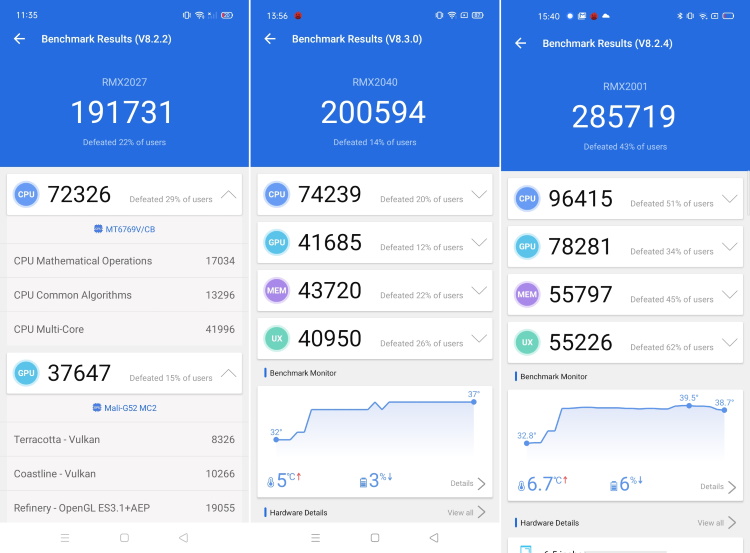
Helio G90T, on the other hand, with the newer ARM Cortex-A76 cores and powerful Mali-G76 GPU offers a tangible performance boost for a minor price difference. Helio G90T scores around 285,000 in the AnTuTu benchmark test.
Geekbench
The Geekbench scores draw an even clearer picture. The Helio G80 abroad the Narzo 10 scores around 380 on the single-core test and around 1280 on the multi-core test. The Helio G70's single- and multi-core scores are around 350 and 1260 respectively. So, you can see that there's not much difference on the processing (CPU) front here. This means the Narzo 10 will offer better gaming performance, thanks to a slightly overclocked GPU.
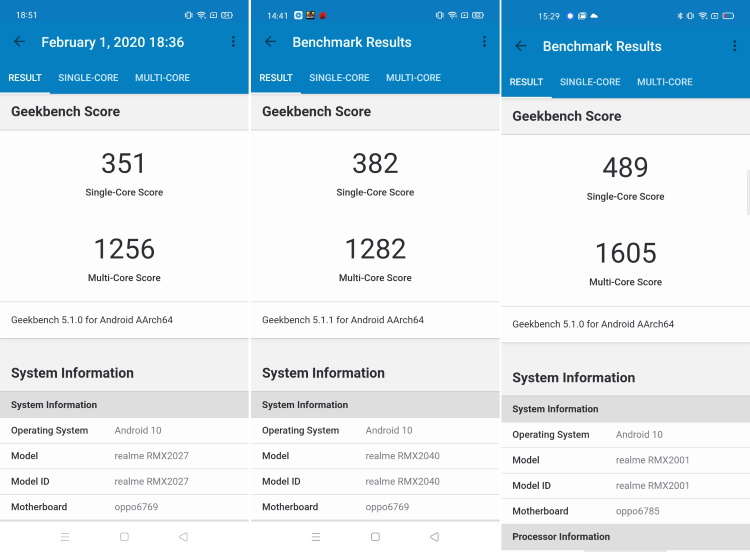
And again, Helio G90T is ahead of the Helio G70 and Helio G80, thanks to the newer Cortex-A76 cores and the higher frequency of the efficiency cores. If you could, then spending couple-thousand bucks extra to buy a Helio G90-powered smartphone will prove to be more fruitful in the long run.
3DMark
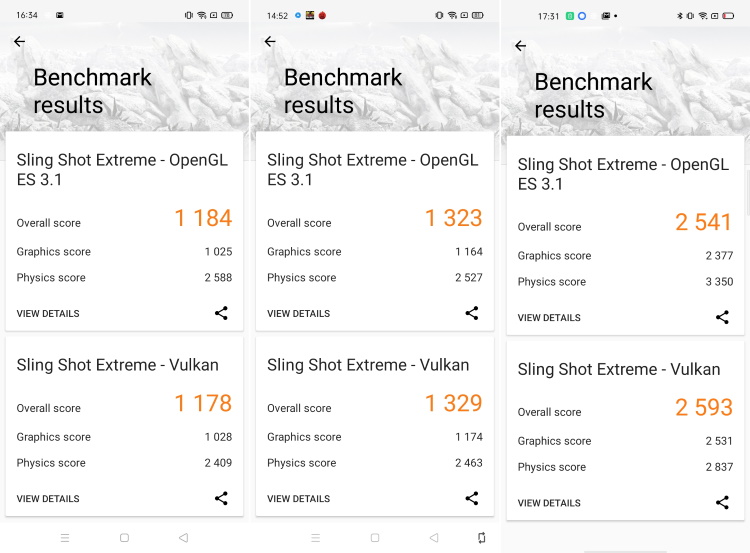
The slight overclock of the Mali-G52 GPU aboard the Helio G80 shows in the Sling Shot Extreme benchmark test in 3DMark, screenshots attached below. The Helio G80 scores more than the Helio G70 on both OpenGL and Vulkan benchmark tests. Helio G90T, on the other hand, boasts a much more powerful GPU that's comparable to the Adreno 616 GPU aboard the Snapdragon 710.
PCMark
I may sound like a broken record but again, the performance of the MediaTek Helio G80 and Helio G70 is comparable. The former scores close to 8500 on the PCMark benchmark test while the latter has pulled close to 8900, which is a minor difference and won't affect the day-to-day usage a whole lot. Helio G90T is clearly the better-performing chipset among the three but needs you to shell out more moolah.
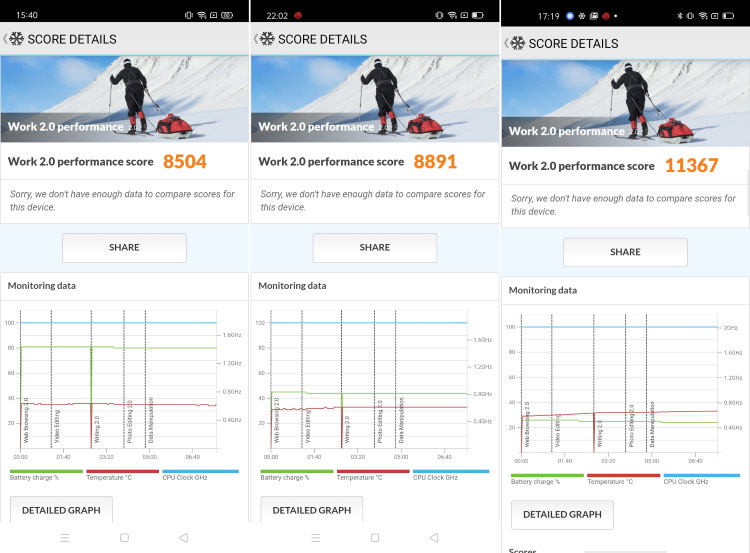
We could not run AITUTU or any other AI benchmark on any of the aforementioned MediaTek G-series chipset phones due to the extended lockdown period. We do not have all of the phones handy at the moment but we still managed to bring you a quick comparison of the Helio G70, Helio G80, an Helio G90T benchmark scores.
Helio G70 vs Helio G80 vs Helio G90T: Which is The Better Chipset?
The answer to this question is right in front of you. As for which device you should buy, well, if your budget is under Rs. 10,000 then the MediaTek Helio G70-powered Narzo 10A won't disappoint you. I would suggest you pick the Narzo 10A over the Realme C3 due to the presence of a physical fingerprint sensor on the former. Realme C3 does not include a fingerprint sensor.
If you can push your budget up to Rs. 15,000 then the Helio G90T chipset aboard the Realme 6 is no match to the Helio G80 chipset on the Narzo 10. It will offer you better day-to-day usability, as well as gaming performance. You also get a 90Hz punch-hole display, 64MP quad-cameras, and a decent battery pack, so what do you think? Let us know your thoughts in the comments below.
Comments
Post a Comment