Sphero Indi Is a Tiny Robotic Car That Helps Children Learn Programming

Realme X50 Pro Player Edition with 48MP Quad-Cameras Cooling System Launched in China


Realme X50 Pro Player Edition with 48MP Quad-Cameras Cooling System Launched in China

By Techtonic group

Realme held a launch event simultaneously in India, as well as China. While the former saw it unveil the much-awaited Realme Watch and Smart TV, the company launched the gaming-centric Realme X50 Pro Player Edition in China. It can be seen as a slightly cheaper version of the flagship Realme X50 Pro that launched earlier this year.

Realme X50 Pro Player Edition boasts a new design, a 48MP quad-camera setup, and a few gaming-related upgrades under the hood. Most of the hardware and internal specs remain the same as the original X50 Pro, so check out the details right here. I'm going to focus on what's new in the Realme X50 Pro Player Edition instead of listing out the entire specs sheet.

Realme X50 Pro Player Edition: What's New

  • Design

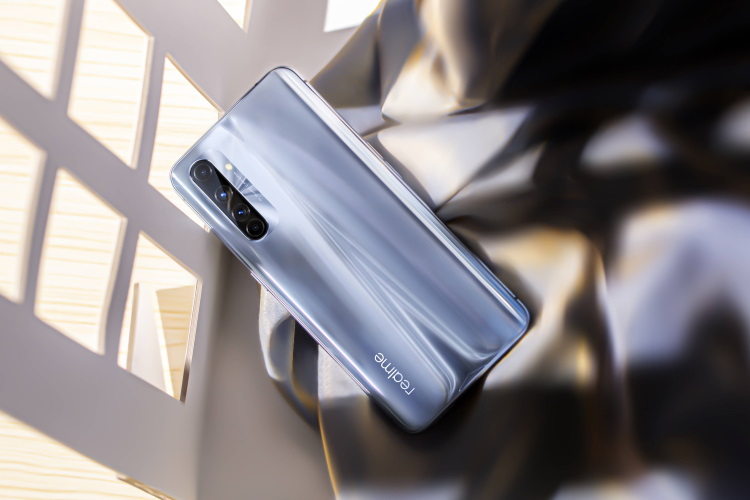
First off, Realme X50 Pro Player Edition brings along a new design. The company has become known for its shiny gradient back panel and this flagship phone is no different. The company has swapped out the matte finish glass on Realme X50 Pro for a shiny 3D curved glass panel on the Player Edition. It comes with Gorilla Glass 5 protection on the rear.

  • Cooling System

As I mentioned above, the internals remains the same as its elder sibling. It means you have the Snapdragon 865 SoC, along with up to 12GB of LPDDR5 RAM and 512GB of onboard storage. However, the biggest upgrade that Realme X50 Pro Player Edition brings along is a cooling system. It includes a vapor chamber and multi-layer graphene sheets on the inside to keep temperatures in check while gaming.

The hardware cooling system is coupled with HyperBoost 3.0 technology. Realme states that the phone will allocate all chipset, memory, and battery resources towards offering enhanced gaming experiences to the user.

  • Cameras

Realme X50 Pro Player Edition swaps out the original's 64MP quad-camera array for a 48MP quad-camera array. It's a minor downgrade over the original X50 Pro.
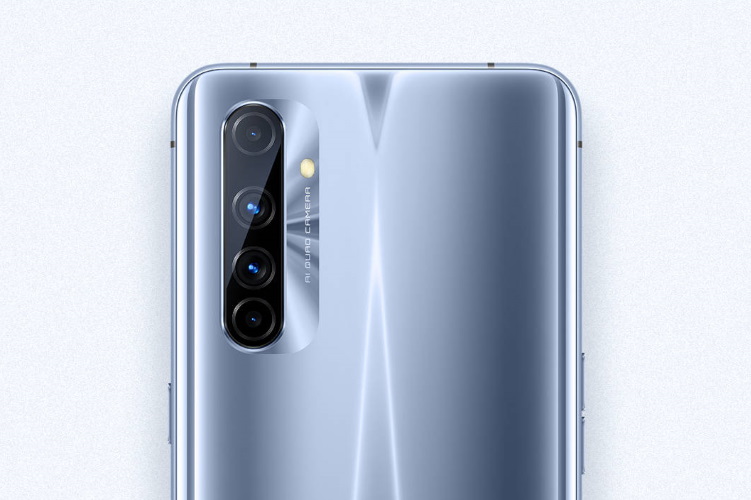
realme x50 pro player edition camera

The primary 48MP camera onboard here is coupled with an 8MP ultra-wide camera, a 2MP macro camera instead of a 12MP telephoto camera, and a 2MP mono lens. As for the dual-camera punch-hole cutout on the front, the device packs a 16MP primary camera and a 2MP depth sensor. It's also a downgrade over the 32MP primary + 8MP ultra-wide camera setup on the original.

Apart from this, Realme has made no other changes to its flagship smartphone. You still get a 6.44-inch Full-HD+ AMOLED display with a 90Hz refresh rate, a 4,200mAh battery pack with 65W SuperDart fast-charging support, and 5G connectivity support out-of-the-box. The device runs Android 10-based Realme UI.

Price and Availability

Realme X50 Pro Player Edition will retail at 2999 yuan (around Rs. 31,999) for the 6GB+128GB variant. The 8GB+128GB and 12GB+128GB variants, on the other hand, will see you shell out 3,299 yuan (around Rs. 34,999) and 3,599 yuan (around Rs. 38,299) respectively.

realme x50 pro player edition

The smartphone comes in two stunning colorways, namely Silver Light and Phantom Black. Realme also showed off the X50 Pro anniversary edition with the company's logo reflecting under light all across the back of the device. It will go on sale from June 1 in China.

Comments

Popular posts from this blog

Here is the First-Ever Video That Was Posted on YouTube

Here is the First-Ever Video That Was Posted on YouTube By Techtonic group Fifteen years ago, on Valentines' Day of 2005, the domain name "www.youtube.com" went live. The following months saw developments of the website and the first-ever video on the platform was posted on April 23, 2005. The YouTuber who shared the video was none other than one of the founding members, Jawed Karim. The YouTube that we know now is a massive video streaming platform with innumerable audience members. However,  it is fascinating to see from where the platform started its journey . So, in this article, I want to talk about the very first video that was uploaded on the platform, and surprisingly, it still exists. So, the 240p, grainy video, titled "Me at the zoo", shows a 25-year-old Jawed Karim, one of the founders of YouTube, standing in front of a group of elephants at the San Diego Zoo.  The 18-second video went live on April 23, 2005, and it is still there with ove...

10 Best File Manager Apps for Android You Should Use

  Almost all Android smartphones   ship with a built-in File Manager app   today. However, not all OEM file managers offer the level of features and functionality that come with third-party apps on the Google Play Store. So today, we will tell you about the 10 best third-party file manager apps (often also referred to as file browser or file explorer) for Android. These apps will help you better organize your files and folders on an Android smartphone. Best File Manager Apps for Android (Updated May 2021) The best file manager apps on Android let you browse your files, find your downloads, manage your storage space, and more. There are plenty of file managers on Android, and most of them are free. While some of them offer you premium features for a small charge, others are ad-supported. So without any further delay, let’s check out the best file manager apps on Android. Table Of Contents  Note:  The apps mentioned in this article are meant for Android smartphone...

How to Remotely Access Your Raspberry Pi from Windows, Mac, Linux, & Chrome OS

  How to Remotely Access Your Raspberry Pi from Windows, Mac, Linux, & Chrome OS We have already written a detailed guide on  how to use a Windows laptop as a monitor for Raspberry Pi , and it requires a wired ethernet connection. However, if you want to remotely access Raspberry Pi from your Windows 10, Mac, or Linux PC, you can do so with Wi-Fi and VNC server. In this article, we also explain the steps to connect to your Raspberry Pi remotely from a Chromebook in detail. Even if you are a beginner, you can follow the instructions and get it running in a few minutes. So without any delay, let’s go through the tutorial. Remotely Access Raspberry Pi From Windows, Mac, Linux & Chromebook (2021) Before establishing a remote connection, you will need to connect Raspberry Pi to your computer through the  wired ethernet medium for a quick one-time setup . This is essential to connect the Raspberry Pi to your Wi-Fi home network. As a result, an IP address will be assigne...