by Techtonic Group
When it comes to tracking items efficiently, AirTag comes close to being a perfect item tracker as compared to alternatives like Galaxy SmartTag. No wonder many are calling it the gold standard for 21st-century luggage tracking. Now, without undermining the rave reviews, Apple’s item tracker has had a fair share of issues even during the early days. While some users have stated that Apple AirTags are not working at all, others have found the much-talked-about “Precision Finding” inconsistent. Irrespective of what sort of problems have come your way, try out these 10 pro tips if your AirTag is not working or connecting to your iPhone.
AirTag Not Working or Connecting to iPhone? Try out These Fixes!
So, what could be causing the AirTag to misbehave? There could be more than one culprit behind the problem. Though network-related issues might be the wrecker-in-chief, you should never overlook a faulty battery as a possible concern. Besides, the incorrect setup may also be equally responsible. Therefore, we will look into all the possible causes and try the best AirTag tips and tricks accordingly.
1. Make Sure Two-Factor Authentication is Enabled
For AirTags to connect to your iPhone/ iPad, you must have two-factor authentication enabled. So, make sure to turn on 2FA on your iOS or iPadOS device if it isn’t already.
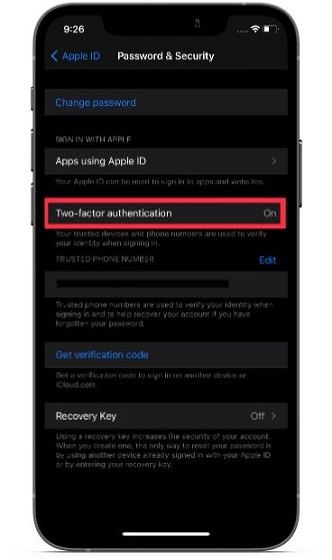
To enable two-factor authentication on your Apple ID, head over to Settings -> [your name] -> Password & Security. Now, ensure that ‘Two-Factor authentication’ is on. You will need to enter your phone number and answer a few security questions to enable 2FA for your Apple ID.
2. Make Sure You Aren’t Using Managed Apple ID
Apple clearly states that if your iOS/ iPadOS device is using Managed Apple ID, you can’t set up an AirTag. So, if an AirTag is not connecting to your iPad or iPhone, be sure your device complies with this requirement.
For those unfamiliar, schools or colleges can create Managed Apple IDs for students to facilitate education. They are unique to each organization and separate from your standard Apple ID. To find out more about Managed Apple IDs and how they work, head over to the Apple Support page.
3. Ensure That Find My is Enabled
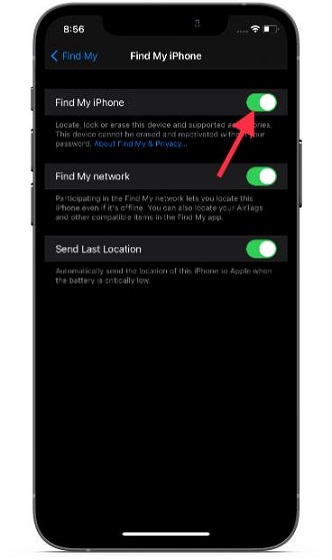
Apart from being available as a full-fledged app, Find My comes with a system-wide switch located in the Settings app. So you can enable/ disable it depending on your needs. Head to Settings -> [your name] -> Find My -> Find My iPhone. Now, make sure the Find My iPhone toggle is turned on.
4. Turn Off/ On Bluetooth, Wi-Fi, and Cellular Network
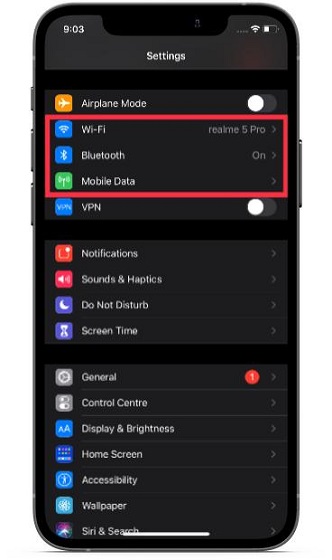
Another thing you should do to fix the AirTag not working problem is to turn on/ off Bluetooth, Wi-Fi, and your cellular network. As they play a key role in helping AirTag work effectively, any sluggishness in iOS 14 or ill-functioning on their part could be the cause of AirTag not connecting to your device. Go to the Settings app on your iPhone or iPad. Then, go to the Wi-Fi, Bluetooth, and Mobile Data sections one after the other. Turn off the toggles for Wi-Fi, cellular, and Bluetooth, and restart your device.
- To restart iPhone and iPad with Face ID: Press and hold the volume up/ down button and power button at once. Then, drag the power-off slider to shut down your device. After that, press and hold the power button to reboot the device.
- To restart iPhone and iPad with Touch ID: Press the power button and then drag the power-off slider to turn off your device. Now, hold down the power button to restart the device.
After your device has restarted, head over to the Settings app and turn on the Wi-Fi, mobile data, and Bluetooth toggles once again.
5. Turn Off/ On Location Services
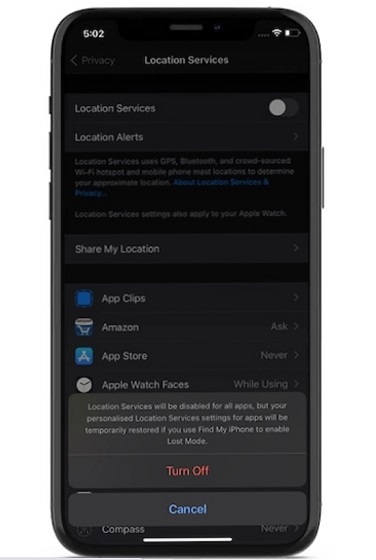
Location Services needs to be enabled so that AirTags can work with precision. If you face issues, even if it’s turned on, disable/ enable the ‘Location Services’ toggle to get rid of any random glitch that may have cropped up. Navigate to Settings -> Privacy -> Location Services to turn it off. After that, restart your device and toggle it back on before trying to pair your AirTag.
6. AirTag Precision Finding Not Working? Try out These Fixes!
As the name suggests, Precision Finding lets you accurately determine the distance and direction of a misplaced AirTag when it is in the range. It uses the U1 chip, present in AirTags and the latest iPhone 12 and iPhone 11 models, to precisely locate and communicate with each other.
The U1 chip takes advantage of ultra-wideband technology and uses input from key components, including ARKit, accelerometer, gyroscope, and iPhone’s camera to guide you to a lost AirTag through haptics, sound, and visual feedback.
Unfortunately, ultra-wideband technology is restricted in some countries and regions. Thus, if Apple AirTag Precision Finding is not working on your iPhone 12 or iPhone 11, make sure that the technology is not blocked in your country or region.
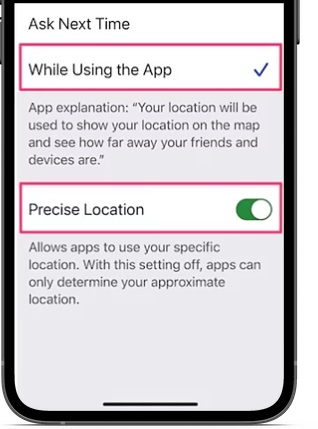
Besides, make sure you have enabled Location Access for Find My. To do that, head over to Settings -> Privacy -> Location Services -> Find My. Now, choose “While Using the App” and turn on the “Precision Location” toggle as well.
7. Reset Network Settings
For the AirTag to work as expected, Wi-Fi, cellular data, and Bluetooth must function properly. If they are facing issues, the item tracker will have a hard time connecting or working as intended. So, if you are still struggling to fix the AirTag not working issue, try resetting the network settings.
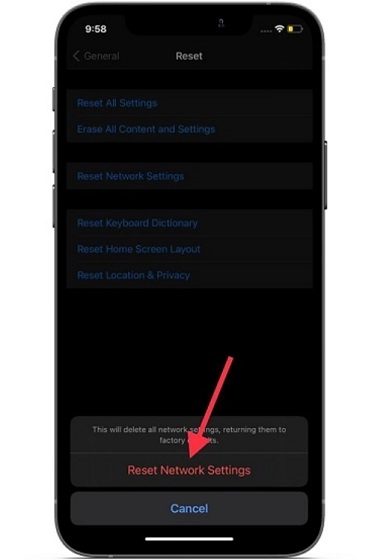
Navigate to the Settings app on your iPhone or iPad and tap on General. Now, scroll down to the bottom and choose Reset. Next, tap Reset Network Settings. After that, enter your device passcode and hit Reset Network Settings again. That should fix any miscellaneous network-related issues, which in turn could help fix issues with AirTag not working or connecting to your device.
8. Factory Reset AirTag
If none of the solutions above help fix the problem, it’s time to factory reset the AirTag. Since it has helped several users fix common AirTag issues, including the signal is weak, Precision Finding not working, and other connectivity issues, the chances are it could do the trick for you.
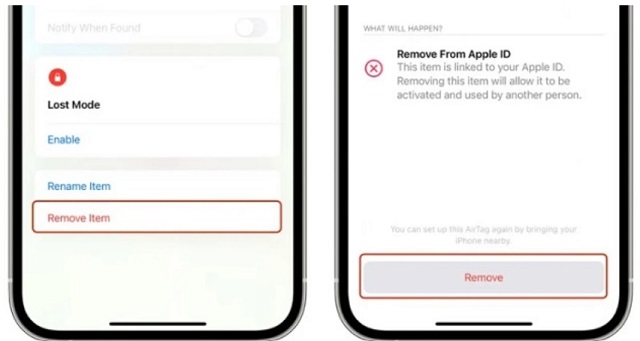
To reset an AirTag, you need to remove it from the Find My app. So open the Find My app and go to the ‘Items’ tab. After that, choose the AirTag you want to reset. Then, swipe up to access AirTag settings and tap on the ‘Remove item’ option at the bottom. Finally, confirm your action by tapping on ‘Remove’ again.
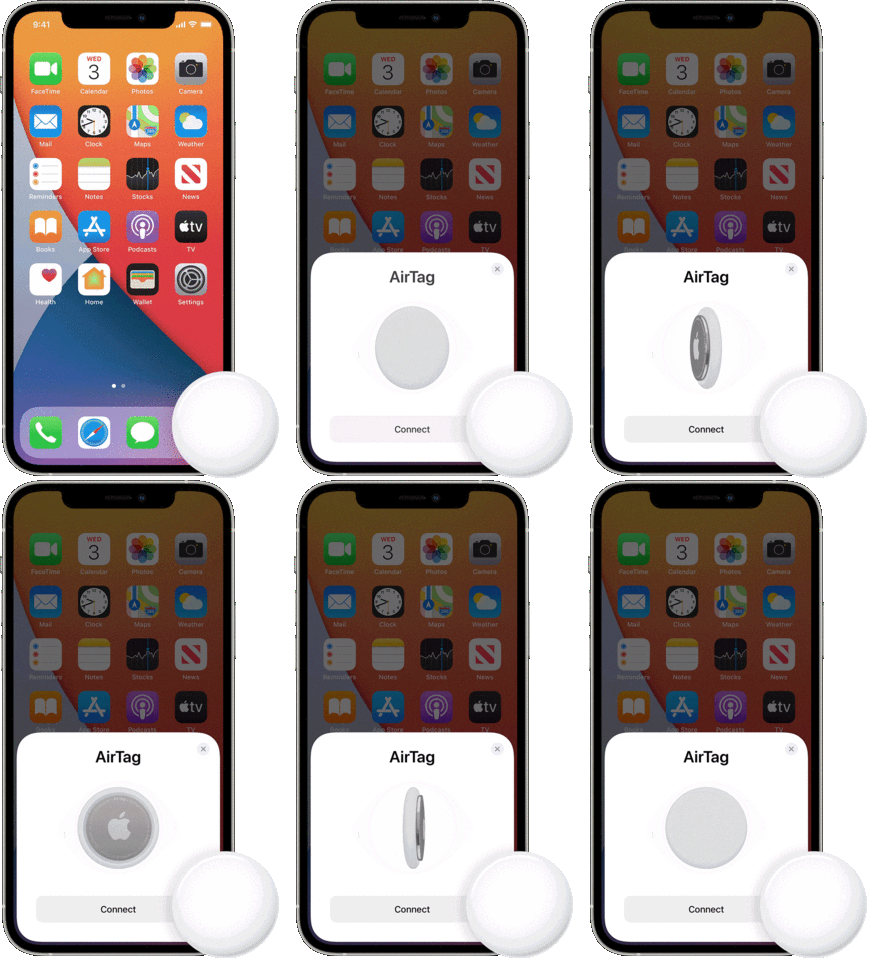
Once you have successfully reset AirTag, reconnect it to your iPhone or iPad. Just hold the AirTag near your device and tap the ‘Connect’ button that pops up on the screen. If you have multiple AirTags and see the “More than one AirTag detected” message, ensure that only one AirTag is near your device at a time.
9. Remove and Replace Your AirTag’s Battery
If your AirTag still misbehaves, remove and replace the battery. The user-replaceable CR2032 battery might be at fault. So, try changing it to see if it sorts out the issue.

To do so, pull out the AirTag from its case/ accessory, and press down the stainless steel back of the AirTag with two fingers. While still pressing down, make sure to rotate counterclockwise until the cover stops rotating. Next, pull apart the two halves of the AirTag. Then, remove the old battery and place the new one. Here are a few links to the best CR2032 battery for AirTag on Amazon:
- LiCB CR2032 3V Lithium Battery: $5.99 for 10-pack
- Duracell CR2032 Coin Battery with Bitter Coating: $6.34 for 4-pack
- Amazon Basics CR2032 Coin Cell Battery: $5.49 for 4-pack
- Energizer CR2032 Coin Cell: $4.49 for 4-pack
10. Update Software on Your iPhone and iPad
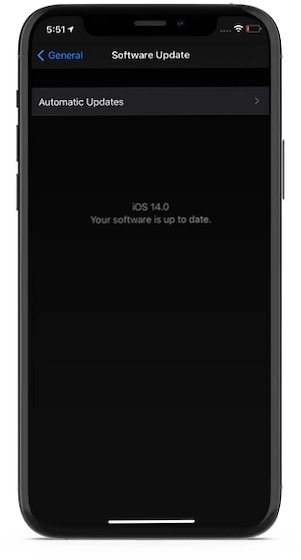
If AirTag continues to ill-function, it would be wise to go for a software update. Well, considering that Apple keeps rolling out software updates with a series of performance enhancements and bug fixes, it could help you with AirTag connectivity issues. Open the Settings app on your iPhone or iPad and go to General -> Software Update. If there is any update available, download and install it.
 Viable Tips and Tricks to Fix AirTag Not Working Issue
Well, that’s pretty much it! Hopefully, your AirTag has once again started to work normally. As I said above, network-related problems are usually the prime suspects, so fixing them resolves the most common AirTag issues. Besides, a factory reset is also quite reliable in sorting out the problem if your AirTag is not working or connecting to your iPhone.
By the way, which one of these tips has helped you troubleshoot your item tracker? Do share your thoughts with us in the comments below. If nothing has worked for you, it would be wise to contact Apple Support at the earliest as there could be hardware damage.
Comments
Post a Comment