How to Remove Google Account From Your Phone (Android and iOS)
Are you thinking of removing a Google account from your phone but don’t how to do that? Well, you have come to the right place. In this article, we will talk about how to remove a Google account from your Android device or an iPhone to help maintain a healthy work-life balance. Here, you will learn how to remove your Google account on Android and iOS, including Gmail, Safari, and the native Mail app on iPhone and iPad. We will also teach you how to remove your Google account remotely from devices that you do not currently have access to.
Remove Google Account From Your Phone (2021)
Removing a Google Account from an Android device is a relatively easy undertaking. However, there are a few more steps involved when trying to do that on an iPhone, but it’s still not too technical. So without further ado, let’s check out how you can remove your Google account from an Android device, iPhone, or web browser.
Remove Google Account From Android Phone
As an Android user, you can easily remove a Google account from your device. Here’s how you do it:
- Go to “Settings” from the pull-down notification panel and tap on “Accounts“. On some devices, this might be listed as ‘Users and Accounts’ or something similar.
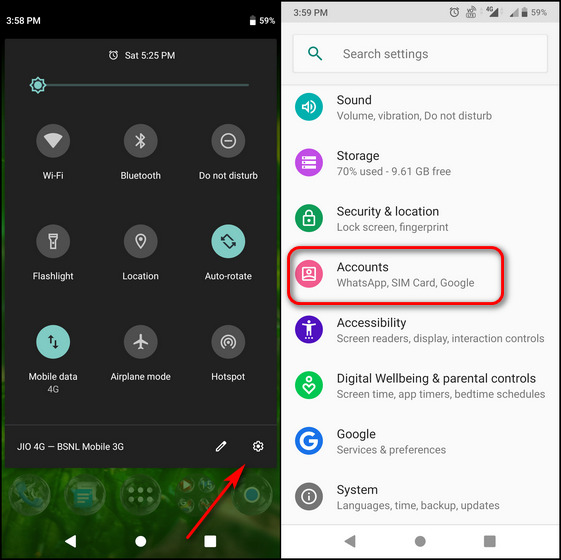
- On the next page, tap on the account (or Gmail ID) you want to remove from the device and hit the “Remove Account” button on the next page. Confirm your choice to remove that particular account from your Android device.
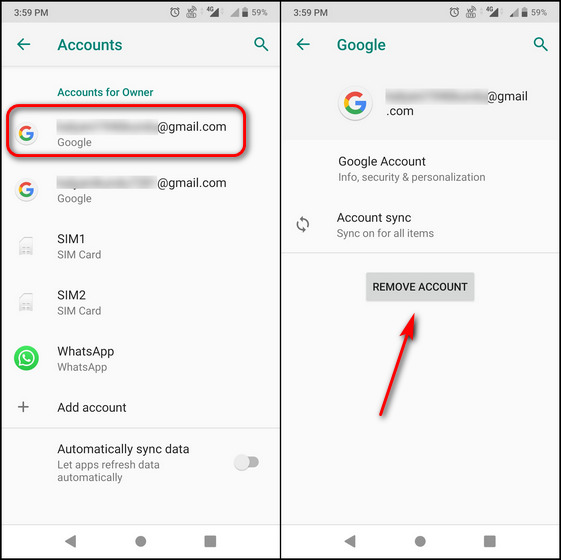
Note: If this is the only Google Account on the phone, you will need to enter your phone’s pattern, PIN, or password for security purposes.
Remove Google Account From iPhone or iPad
How you remove your account from an iPhone or iPad depends on how you access that account on your Apple device. Depending on whether you use the Gmail app, Apple’s native Mail app, or Safari to access Google, here’s how you should go about it:
Gmail
Follow the steps below to remove your Google Account from the Gmail app on iPhone:
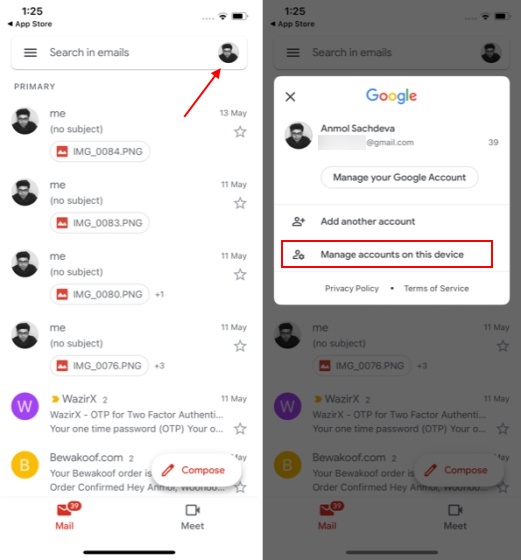
- Open the Gmail app on your iPhone and tap your profile image at the top-right. Now tap on “Manage accounts on this device“.
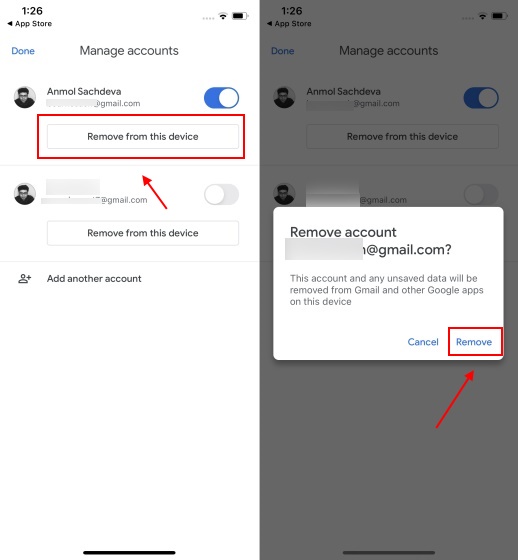
- Next, tap on the “Remove from this device” button under the Google account you want to remove from your iOS device. Confirm your choice by tapping “Remove” when asked.
Safari
If you use your Google account in the Safari web browser, follow the steps below to remove your Google Account from Safari:
- Open Safari and navigate to google.com. Now tap on your profile picture at the top right and hit the “Sign Out” button.
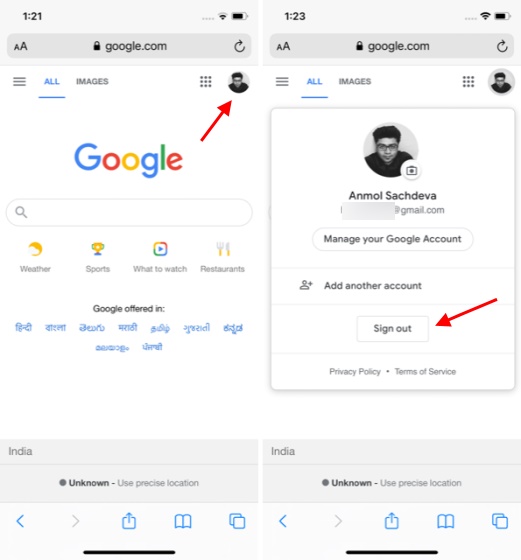
Note: If you see an option to ‘Sign in’ instead of your profile image, you’re already signed out. In that case, go to the next step directly.
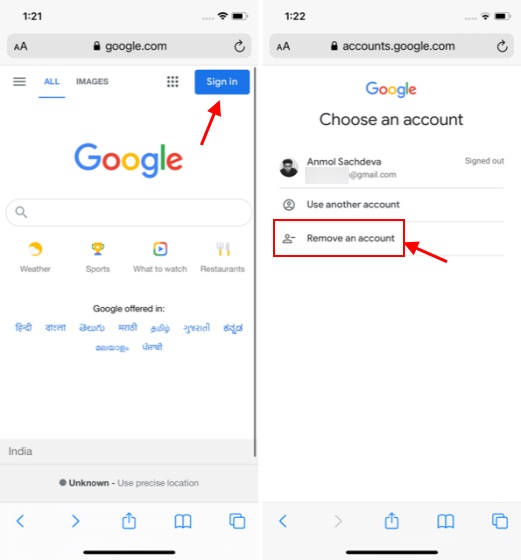
- Once you’re signed out, tap on the “Sign in” button at the top right. Then, on the next page, select the “Remove an account” option.
- Next, tap on the red “minus” button next to the Google account you want to remove. Confirm your action by selecting “Yes, remove” from the pop-up window.
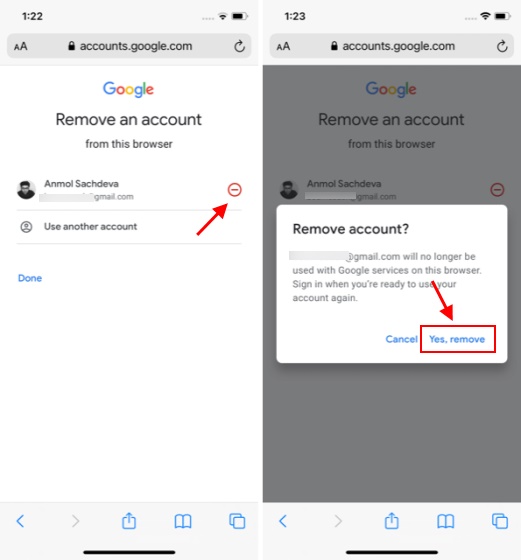
That’s it! You have successfully removed your Google account from Safari on iPhone or iPad.
Apple Mail App
Here’s how you can remove your Google account from Apple’s native Mail app on an iPhone or iPad:
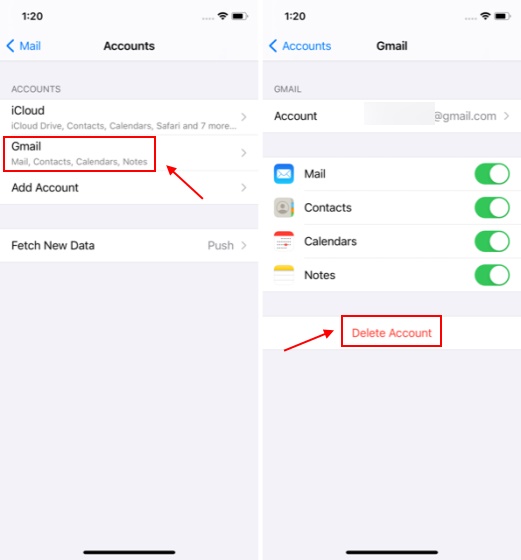
- Open Settings and navigate to “Mail -> Accounts” on your device running iOS 14/ iPadOS 14 and later. On iOS 13 and iPadOS 13 and earlier, navigate to Settings -> Passwords and Accounts.
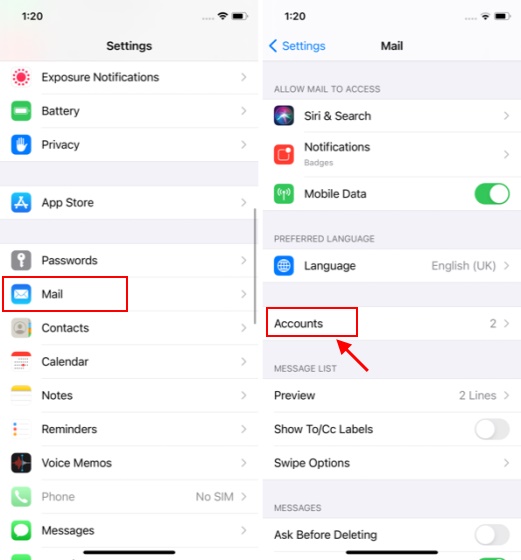
- Next, tap on “Gmail” under “Accounts” and then hit the “Delete Account” button at the bottom. Confirm your action, and that’s it! You have successfully deleted your Google account from your iPhone or iPad.
Remove Google Account From Any Device Remotely
You can also remove your Google account from a device that you do not have access to anymore. This comes in handy when you have to hand over your computer, phone, or tablet to someone temporarily or forgot to log out of your Google account after using someone else’s device.
Remove Google Account from Any Device Using Android
Here’s how you go about removing your Google account from any device remotely using an Android smartphone:
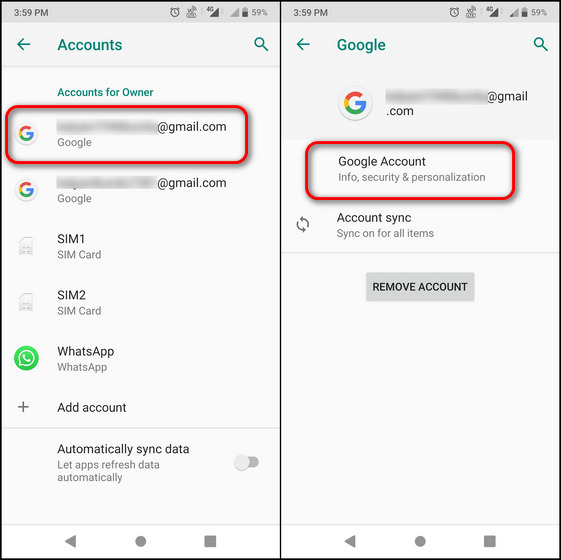
- On your Android device, go to Settings -> Accounts as explained in the first step in the article. Now select the target account and tap on ‘Google Account‘.
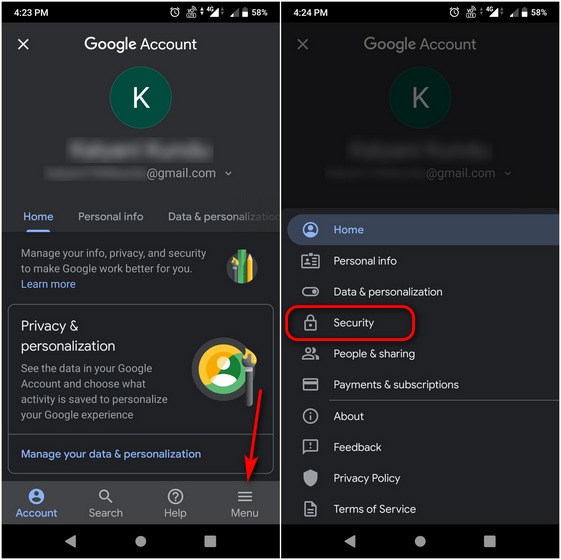
- Next, tap on the “Menu” button on the bottom right and tap on “Security“. You can also directly navigate to the “Security” tab by swiping left on the row just under your Google ID.
- Now scroll down on the Security page until you see the ‘Your Devices’ section. Here, tap on “Manage devices” to get more details about the devices you are signed-in on with your Google account. On the next page, tap on the three-dot menu button next to the device you want to sign out of, and hit “Sign Out”.
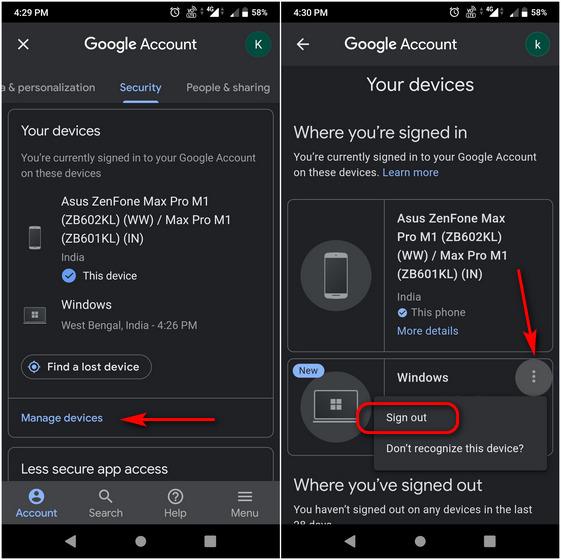
You have now successfully removed a device remotely from your Google account.
Remove Google Account from Any Device Using Web Browser
Here’s how you remove your Google account from a device remotely using virtually any desktop browser:
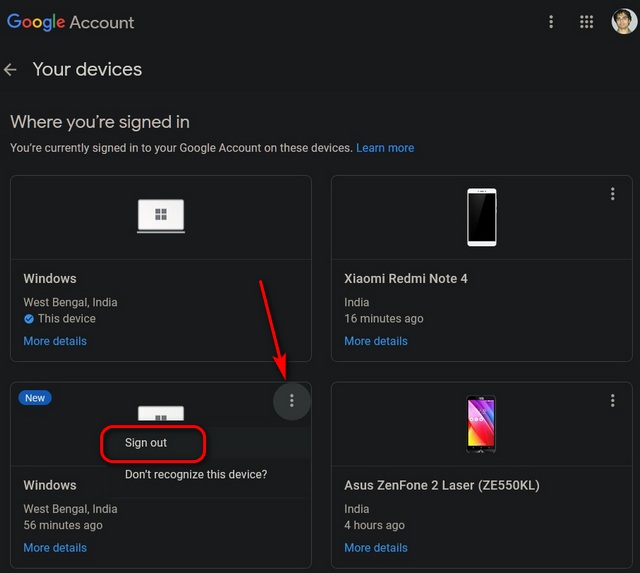
- First off, log into your Google account using a web browser. Then, open this link and scroll down a little to find the “Your devices” section, where you will see a list of all your devices you’re currently signed into using your Google account. Click on ‘Manage devices‘.
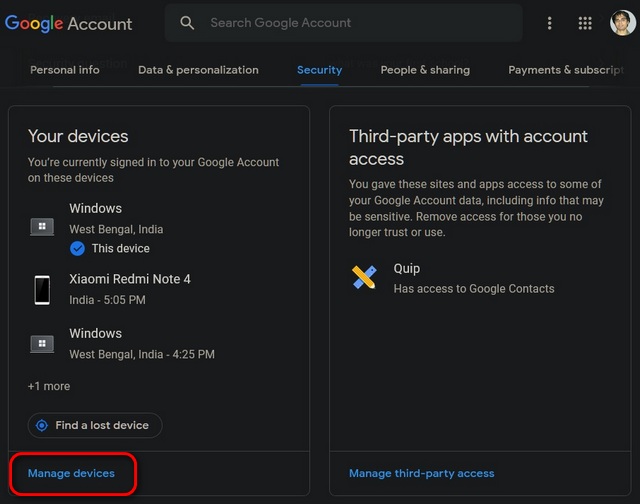
- Next, hit the three-dots menu button next to your target device and click on “Sign Out“. You can click on “More Details” to confirm that it is, indeed, the device you want to sign out of. Finally, confirm your selection when asked. You have successfully signed out of your Google account on a device remotely.
Safeguard Your Privacy by Signing Out of Google From Any Device, Anywhere
Now you know how to remove your Google account from an Android or iOS device and even a web browser remotely. So you no longer need to fear others accessing your private emails, documents, or other Google services. So go ahead and safeguard your privacy and let us know how that went. In the meantime, also check out how you can add or remove guest user accounts on your Android phone and how you can remove your profile photo from your Google account. Finally, if it’s Google that you’re worried about, learn how you can scrub all traces of Google from your life once and for all.
-by Techtonic Group
Comments
Post a Comment